


What is Sound Check?
Sound Check is a new Guitar Tricks feature that listens to you play along with a backing track, then gives you a score and specific feedback on what to fix. Think of it as a teacher sitting next to you during practice. Just record a take, and within seconds you get a report on your note accuracy, timing, and the exact moments where you need extra work.
How Sound Check helps with your playing
Most players can't hear their own mistakes while they're focused on playing. Sound Check catches them for you, so your practice time goes to the parts that need it.
- Honest, objective feedback. You get a score out of 100, broken into Note Accuracy and Timing. No more guessing.
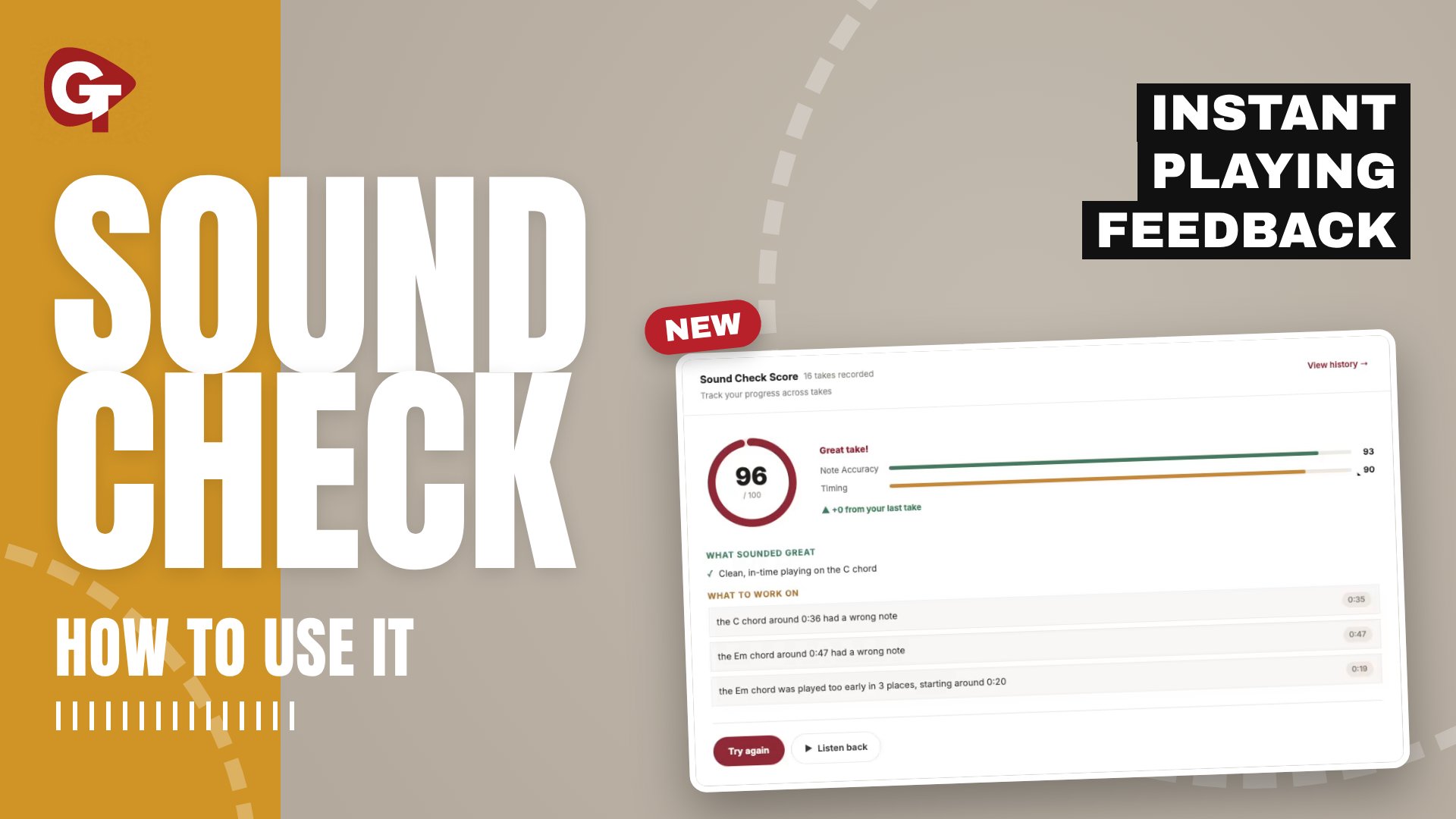
- Pinpointed problem spots. Feedback is tied to timestamps, like "the C chord around 0:36 had a wrong note" or "the Em chord was played too early in 3 places, starting around 0:20." You know exactly where to look.
- Recognition for what's working. A "What sounded great" section confirms the parts you've already got down, so you can stop drilling them.
- Visible progress. Every take is saved. Your best score shows on the lesson page, and you can view your history to see yourself improving over time.
- Better timing. Playing with a backing track and getting a separate timing score builds the rhythm skills you need to play with other musicians.
How to use Sound Check
Watch Mike's step-by-step walk through video on how to use Sound Check. The whole process takes about a minute plus the length of the song. Here's how it works, using the Guitar Fundamentals 1 lesson "Learn & Play Song: Flick The Switch" as the example.
- Find a lesson with Sound Check. Lessons that support it show a Sound Check banner below the video.
- Open Sound Check. Click Try Sound Check in the banner, or the Sound Check button under the video. The notation and tab open in a larger player.
- Pick your notation view. Toggle between Classic and New at the top. Leave Follow playback on so the music scrolls and highlights each measure as you go.
- Optional: rehearse first. Press play to hear the backing track, or turn on Loop to run through it a few times before you record.
- Click Record Sound Check. A Quick Setup checklist appears. It takes about 15 seconds:
- Wear headphones, so Sound Check hears only your guitar and not the backing track. This is the one that matters most.
- Tune your guitar. There's a handy open tuner link right in the checklist.
- Find a quiet spot.
- Allow microphone access when your browser asks.
- Click "Got it, let's go" and allow the microphone. Your browser will ask for permission to use your mic. Click Allow.
- Play along. The recording starts with the backing track. A progress bar shows your time, and a live input meter at the bottom confirms your guitar is coming through clearly. The current measure is highlighted on the tab so you never lose your place.
- Review your score. When the song ends, Sound Check spends a few seconds analyzing your take. Then you'll see:
- An overall score out of 100
- Separate Note Accuracy and Timing scores
- How you did compared to your last take
- What sounded great, such as "Clean, in-time playing on the C chord"
- What to work on, with timestamps for each wrong note or rushed chord
Getting the most out of Sound Check
- Always use headphones. Without them, your mic picks up the backing track and your score won't reflect your playing.
- Tune before every session. A slightly out-of-tune string can register as a wrong note.
- Work on one problem at a time. Pick a single item from "What to work on," jump to that timestamp, and loop that section until it's clean. Then record a new take.
- Separate notes from timing. If Note Accuracy is high but Timing is low, slow down and focus on locking in with the beat rather than learning more notes.
- Don't chase 100 on day one. A rising score across several takes is the real goal. Check your history to see how far you've come.
- Come back later. Re-record a song a few days or weeks after you've learned it. It's a quick way to check that the skills stuck.
Try it on your next lesson
On lessons where Sound Check is available, it turns every play-along into a measurable practice session. You'll know what you got right, what to fix, and whether you're improving.
Look for the Sound Check banner on lessons, put on your headphones, and record your first take. Sound Check is currently in beta, so we'd love to hear what you think.
Frequently Asked Questions
Which lessons have Sound Check?
Look for the Sound Check banner below the lesson video where Sound Check is available. If a lesson supports it, the banner says so and shows a Try Sound Check button. It also shows your best score once you've recorded a take.
Do I really need headphones?
Yes, it's the most important part of setup. Without headphones, your microphone picks up the backing track along with your guitar, and that makes your score less accurate.
What kind of microphone do I need?
Sound Check listens through the microphone your browser has access to. Before you record, check the live input meter at the bottom of the recording screen to make sure your guitar is coming through clearly.
I clicked "Don't Allow" on the microphone prompt. How do I fix it?
Change the microphone permission for Guitartricks.com in your browser settings. In Safari, go to Settings > Websites > Microphone. Then reload the lesson and try again.
How is my score calculated?
Your overall score is out of 100 and combines two things. Note Accuracy measures whether you played the right notes. Timing measures whether you played them in time with the track.
What do the timestamps in "What to work on" mean?
Each one marks the point in the song where Sound Check heard a problem, like a wrong note at 0:36. Use it to find the exact measure to practice, then record a new take.
How many times can I record?
As many as you like. Click Try again to record a new take. Each take is saved, and the results screen shows how your score changed from your last one.


